Your IT budget in KANAP in ten minutes
Explore with the example · Start with my own data
Fromage & Co is a fictional cheese group whose example is loaded in your workspace. In ten minutes on its budget, you read the budget lines, open the largest one, run a report, ask Plaid a question and see how your own file comes in.
These are the five steps of the Your first five steps tile on the home page, for the path The IT budget with Explore with the complete example. Each step in the tile opens its screen with a short hint, and opening it marks it done. See Trial: your path and first steps.
1. The overview
Budget management > Budget lines
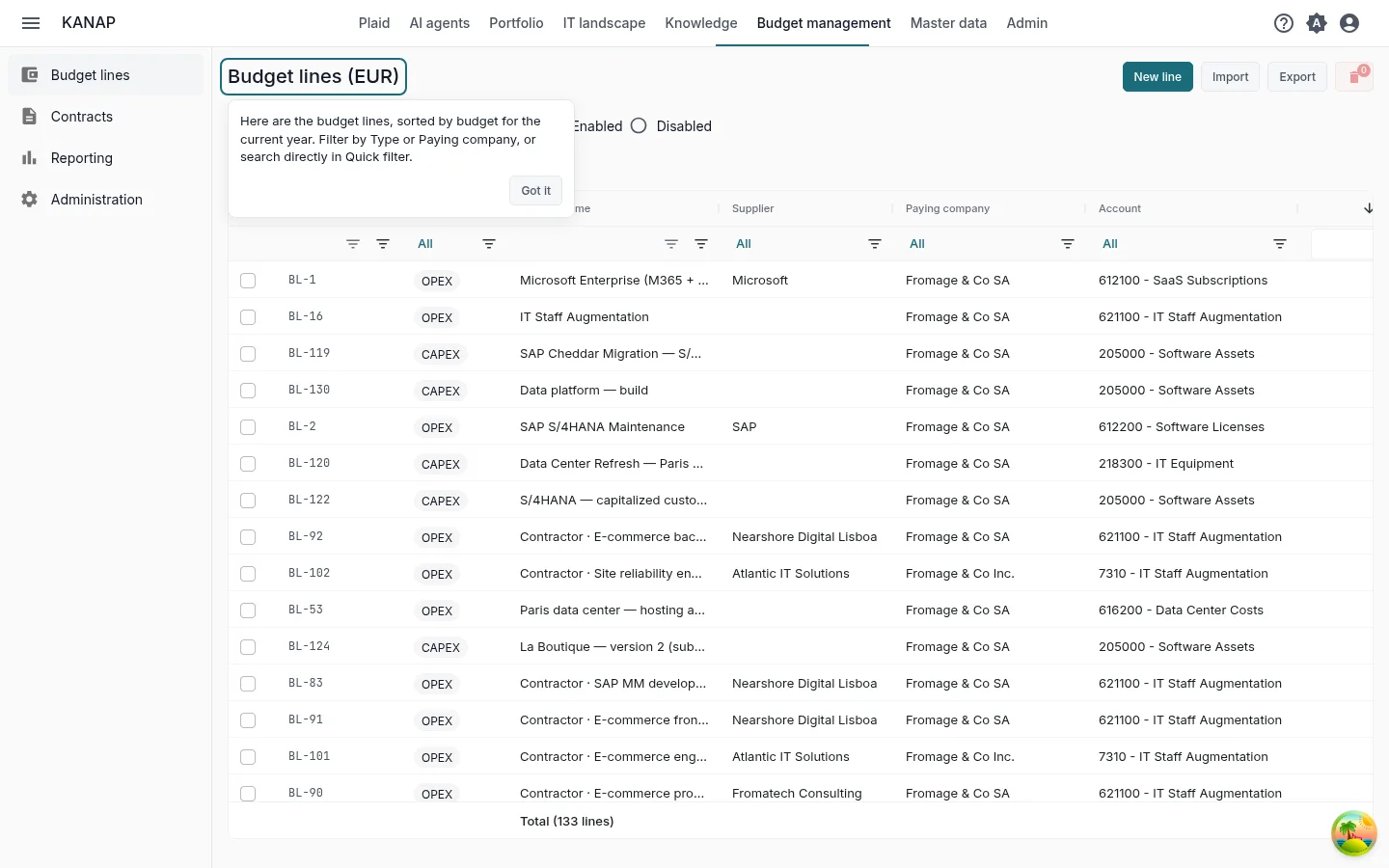
What to do. Filter the list by Type (OPEX or CAPEX) or by Paying company, or type a name in Quick filter.
What you see. Every budget line of the example, sorted by its budget for the current year. Each line has a paying company, an account, a supplier and amounts for each year.
2. A budget line
The largest line of the year, opened by the step
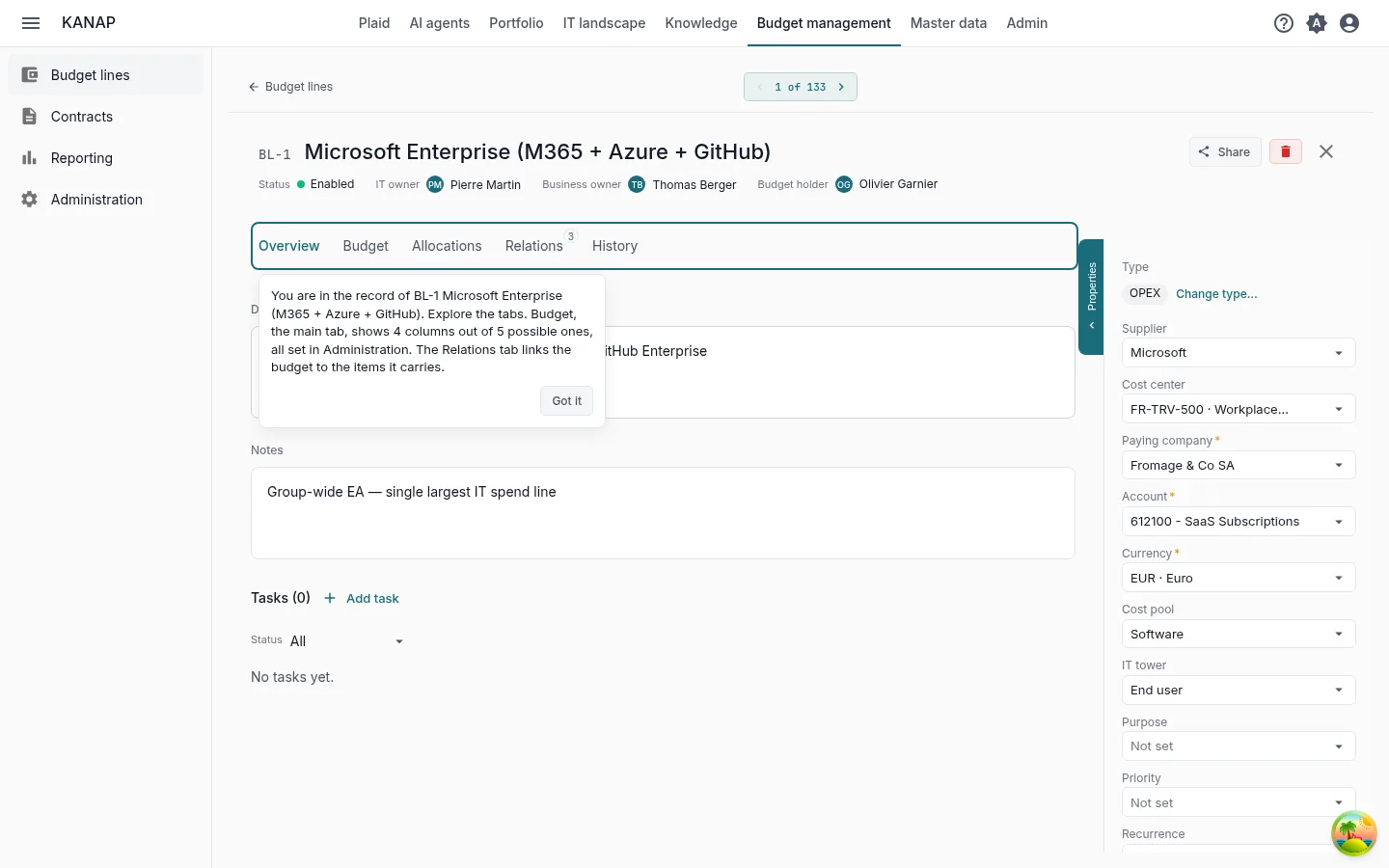
What to do. Open the Budget tab, then Relations and History.
What you see. Budget shows the amounts of the year in four budget columns out of the five available. Their names and which ones show are set in Budget management > Administration. Relations links the line to what it pays for: contracts, applications, projects. History keeps every change with its author and date.
3. A report
Budget management > Reporting > Top lines
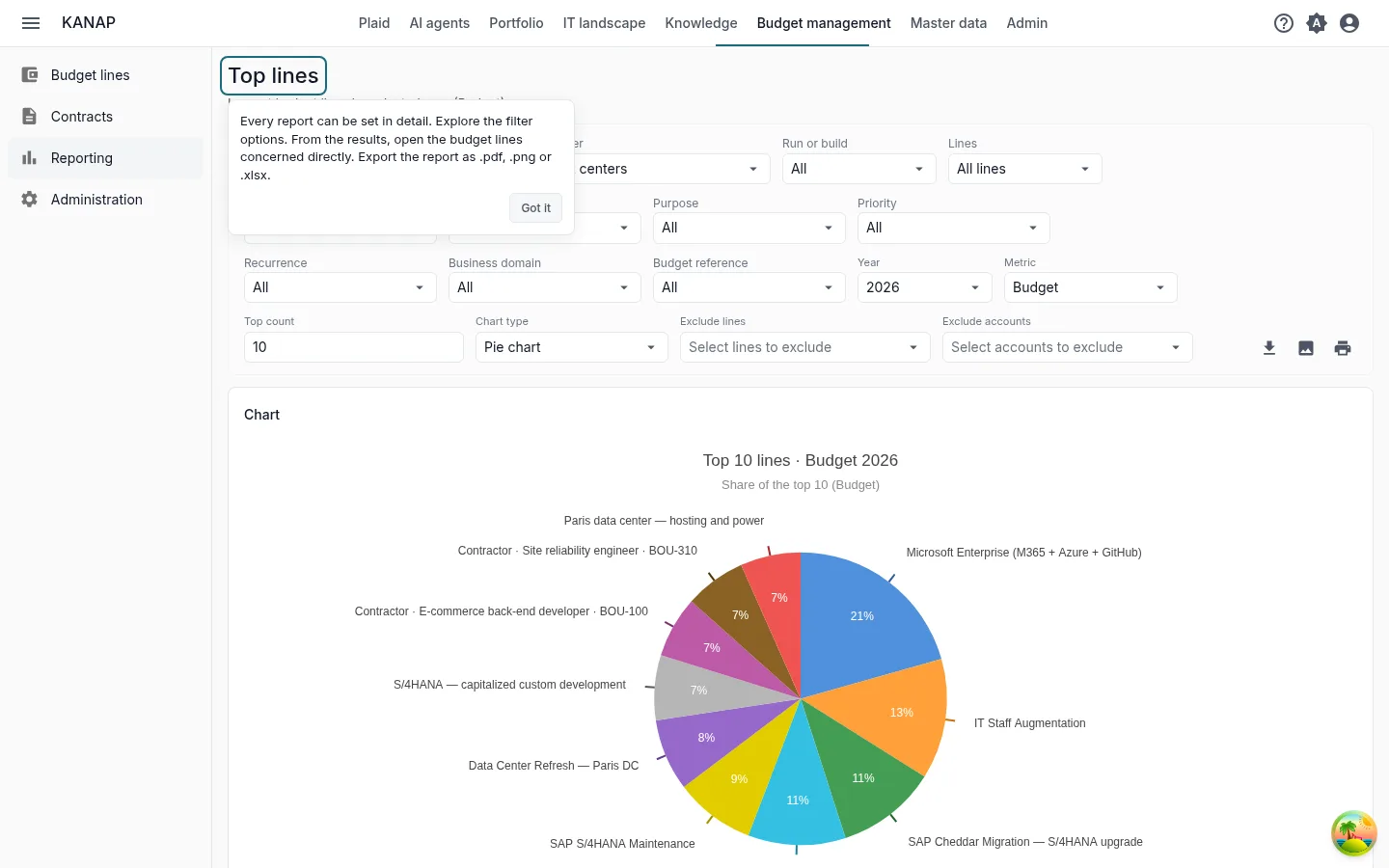
What to do. Switch between OPEX and CAPEX, change the Year, the Metric or the Top count. Click a line in the results to open it.
What you see. The largest lines of the year with their share of the total, as a chart and a table. Every report can be exported as .pdf, .png or .xlsx.
4. A question for Plaid
Plaid, in the top bar
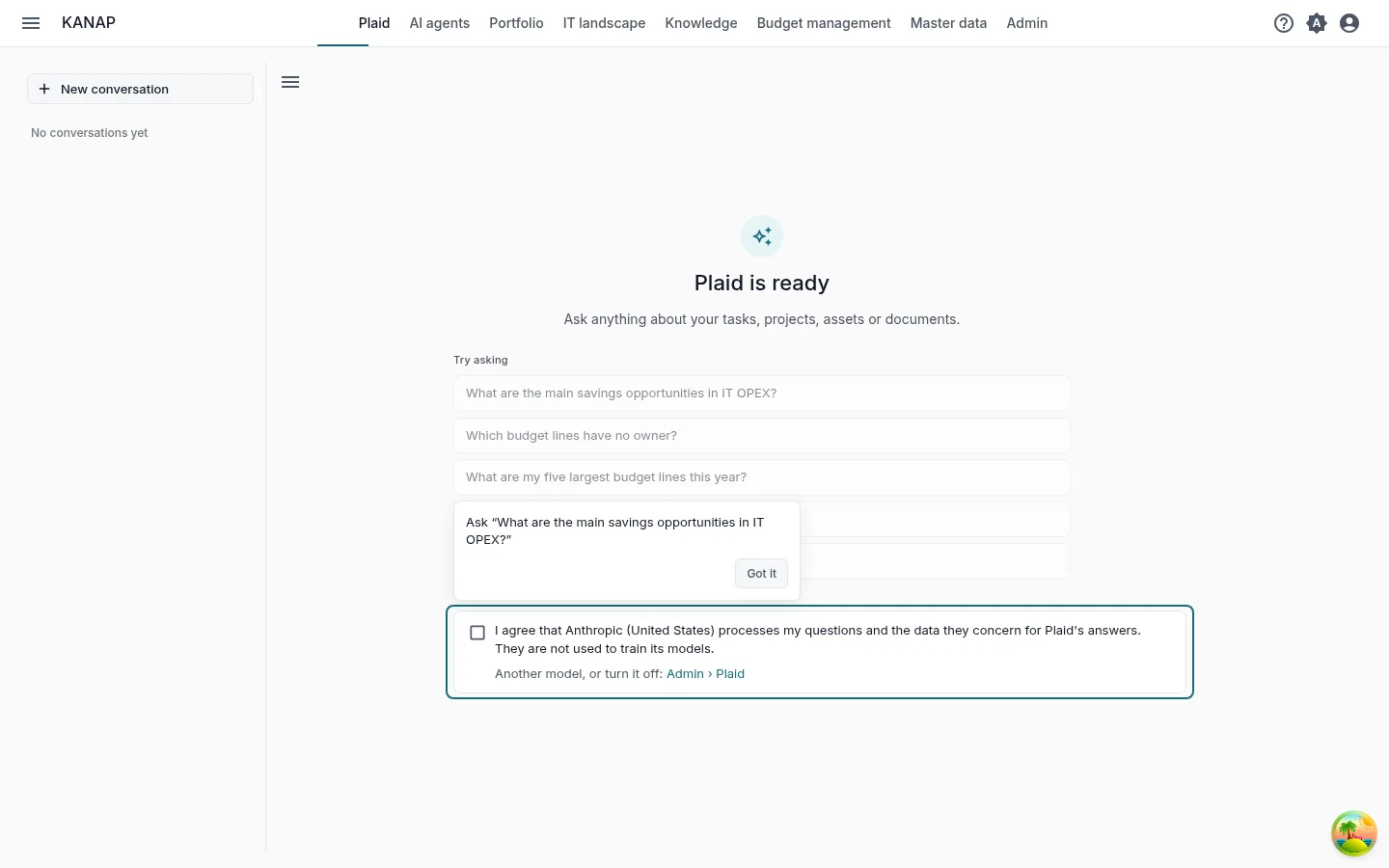
What to do. Under Try asking, click What are the main savings opportunities in IT OPEX? The path's second question, Which budget lines have no owner?, comes next.
What you see. An answer built on the budget lines of the example. Plaid reads them with your access rights. Check a line it names against the list of step 1.
During the trial, Plaid starts turned off. An administrator turns it on by ticking the box that takes the place of the message field. Anyone else reads that Plaid is waiting for an administrator. See Before the included model is accepted.
5. Your data
Budget management > Budget lines, Export
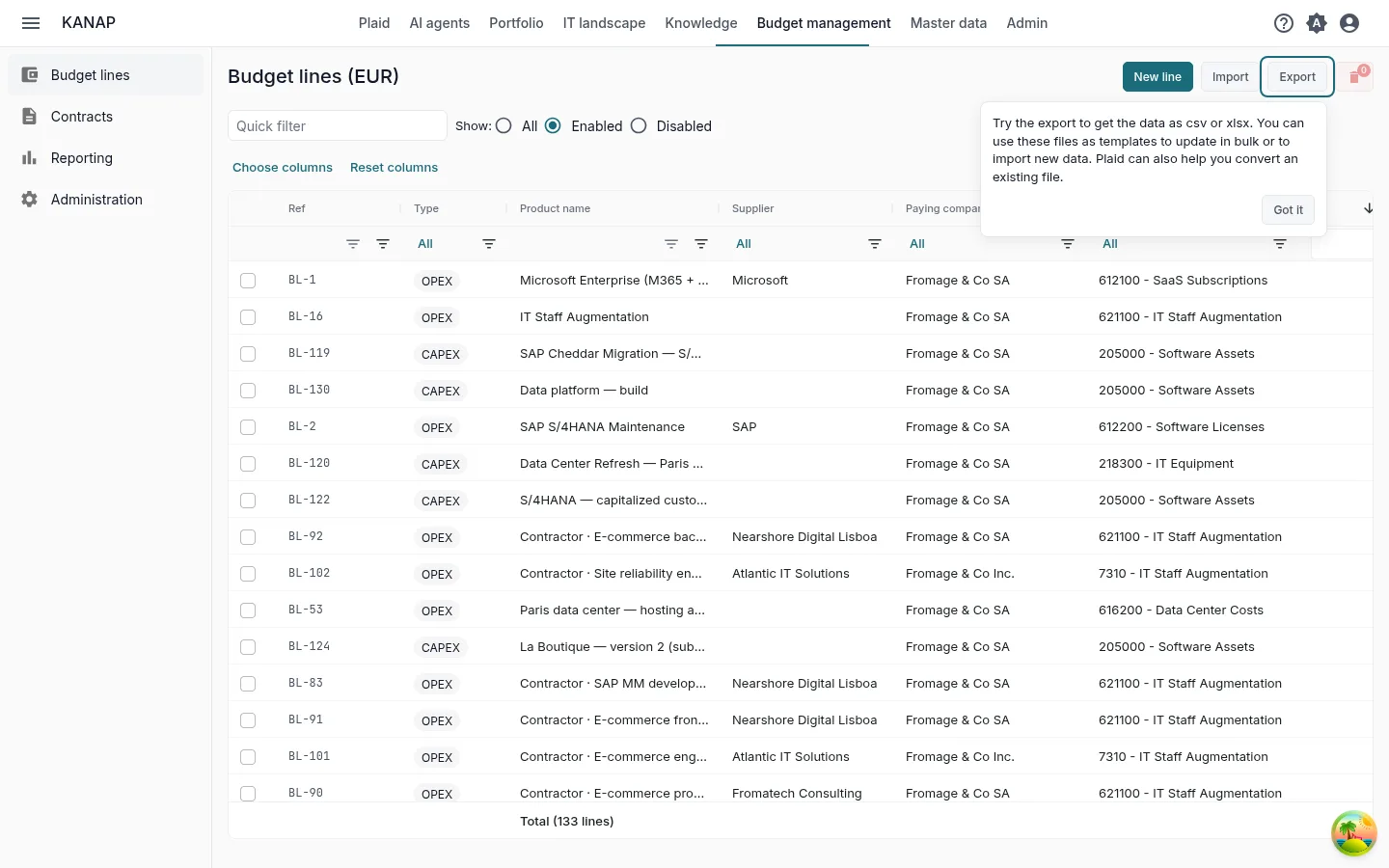
What to do. Click Export, choose CSV or Excel (.xlsx) and open the file. Then click Import and Download an example.
What you see. The export is the budget file: the same columns the import reads. Use it as a template to update lines in bulk or to load new ones. The example workbook holds a few lines, the other columns on an Advanced sheet and what each column takes on a Notes sheet. An import checks the whole file before it loads anything. Export and Import are shown to the administrators of the budget.
To start from a file you already keep, attach it to a message in Plaid with Attach a file. Plaid reads its column headers, the type of each column and the first ten rows, and can say what each column holds.
Next
You have seen the essentials of KANAP for the IT budget. The two other paths also take ten minutes:
When the five steps are done, the tile offers these paths. During the trial, it also offers Book a discovery call.
To go further: Budget lines, Reports, Load a budget from a spreadsheet.